Modern smartphones are incredibly powerful. Yet, many advanced features are hidden from most users. To unlock your device’s full potential, you need to know how to access special system settings.
These tools let you customize and test your phone in ways you can’t with standard menus. It’s like unlocking a secret world of possibilities.
Getting Developer Mode on your iPhone 15 Pro iOS 26 is the first step. It opens up experimental settings for enthusiasts and testers. By exploring these hidden paths, you can control parts of the operating system that are usually off-limits.
This guide will give you a solid foundation for exploring these powerful settings. We’ll show you how to safely activate these features. Once you know how, you can manage your system environment and use your hardware to its fullest.
Understanding the Benefits of Developer Mode on iPhone 15 Pro iOS 26
The iPhone 15 Pro has special tools for app builders and testers. These settings are hidden to keep the user experience smooth. Learning about these features is key to using your device fully.
Why Apple Restricts Advanced Debugging Features
Apple focuses on keeping your phone stable and safe. They limit access to deep tools to avoid crashes or data loss. Most people don’t need these advanced settings for everyday use.
These limits protect against bad software or mistakes. They keep your phone running well. This makes sure everyone can use it without problems.
Key Advantages for App Developers and Power Users
For developers, the iPhone 15 Pro offers detailed control. They can check app performance in real-time. This is crucial for making apps work well on the latest iOS.
Power users also benefit a lot. You can test network conditions, battery states, and animation settings. Using these features makes your phone more personal and efficient.
Security Considerations Before Activation
Think carefully about the benefits and risks of developer mode. Using these tools can make your phone vulnerable if you’re not careful. Always know what you’re doing when changing system settings.
Turning on these features means understanding how they work with debugging software. Weighing the benefits against the risks helps you decide wisely. Always protect your data when using advanced features.
Step-by-Step Guide to Enabling Developer Mode
Enabling developer mode on your iPhone 15 Pro is easy if you know the steps. By tweaking your ios 26 settings, you unlock special tools. This guide helps you do it safely and quickly.
Preparing Your iPhone 15 Pro for Configuration
First, make sure your iPhone is updated to iOS 26. Back up all your data using iCloud or a computer. This step keeps your info safe during setup.
Navigating to the Privacy and Security Settings
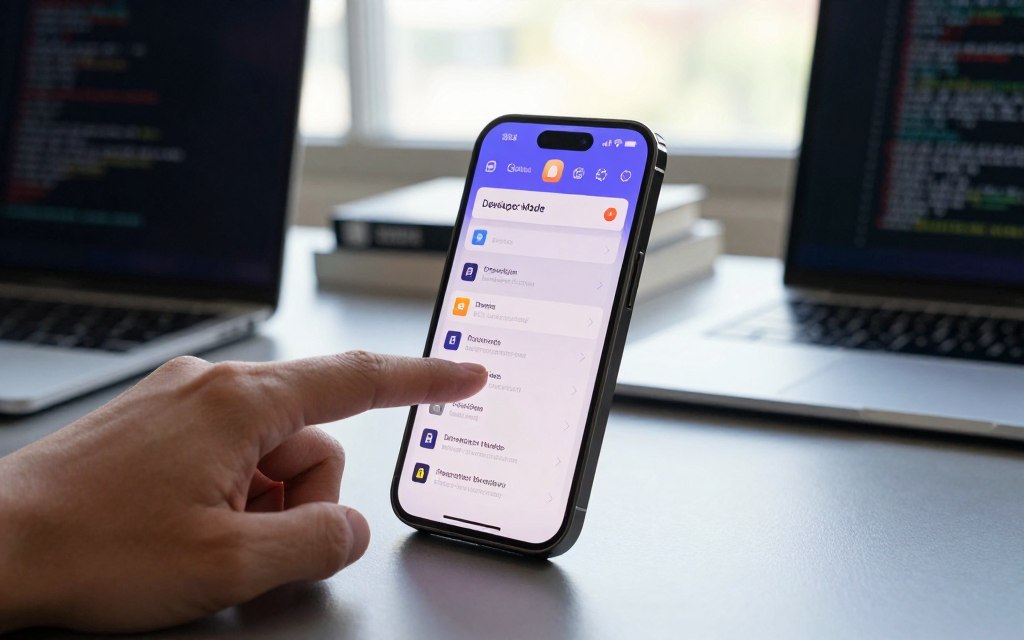
Open the Settings app and scroll down to Privacy & Security. Tap it to see advanced controls. Look for the toggle at the bottom for developer tools.
Executing the Toggle and System Restart
Tap the switch to turn on the feature. Your iPhone will ask you to restart. Say yes and wait for it to start up again.
Verifying the Developer Menu Appearance
After restarting, go back to Settings. You should see a “Developer” menu in Privacy & Security. If it’s there, you’ve set up your device for testing.
Managing Trust Certificates for Local Testing
To test custom apps, manage your trust certificates. Go to the profile settings to add your developer identity. Always trust certificates from known sources to keep your settings secure.
Troubleshooting and Best Practices for iOS 26 Developer Tools
Keeping your iPhone 15 Pro stable is key when you use advanced settings. You might see apps crash or lose connection while testing. To fix this, check your cables and make sure your Mac has the latest Xcode.
Always back up your data before making big changes. This simple step keeps your files safe from errors. Having backups means you can try new things without worry.
Using these tools wisely keeps your device running smoothly. A clean and organized testing space helps a lot. This way, you can explore your device’s limits without harming it.
Post about your experiences in community forums. Your stories help others and make the system better for everyone. Keep discovering what your Apple device can do.