Knowing what monitor you have is key to keeping your system running smoothly. It helps with updating drivers and solving problems. Figuring out your monitor’s specs is easy and important.
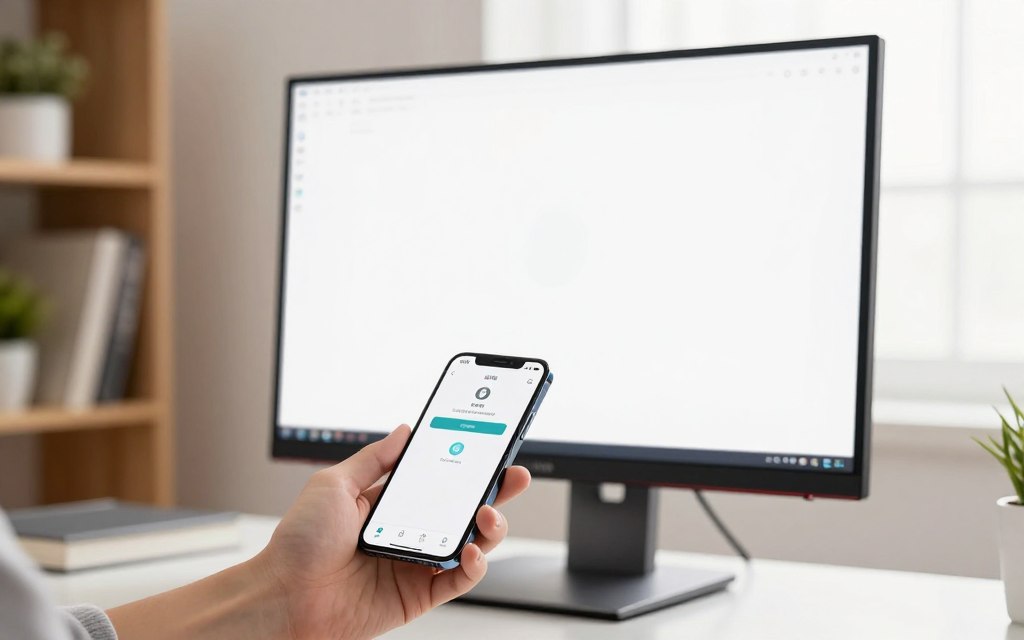
You don’t need to be a tech expert to do this. Most computers have tools that show device details quickly. These tools let you control your screen’s look and color.
Learning to identify your monitor is a basic skill. It helps avoid mistakes when installing software and picking the right screen settings. Follow these simple steps to find out about your monitor’s specs today.
Methods to see what monitor I have
Knowing your monitor’s identity is key for troubleshooting or updating drivers. You can use several easy methods to find your screen’s technical specs. These methods include a quick physical check or using your computer’s settings.
Checking the physical label on the monitor
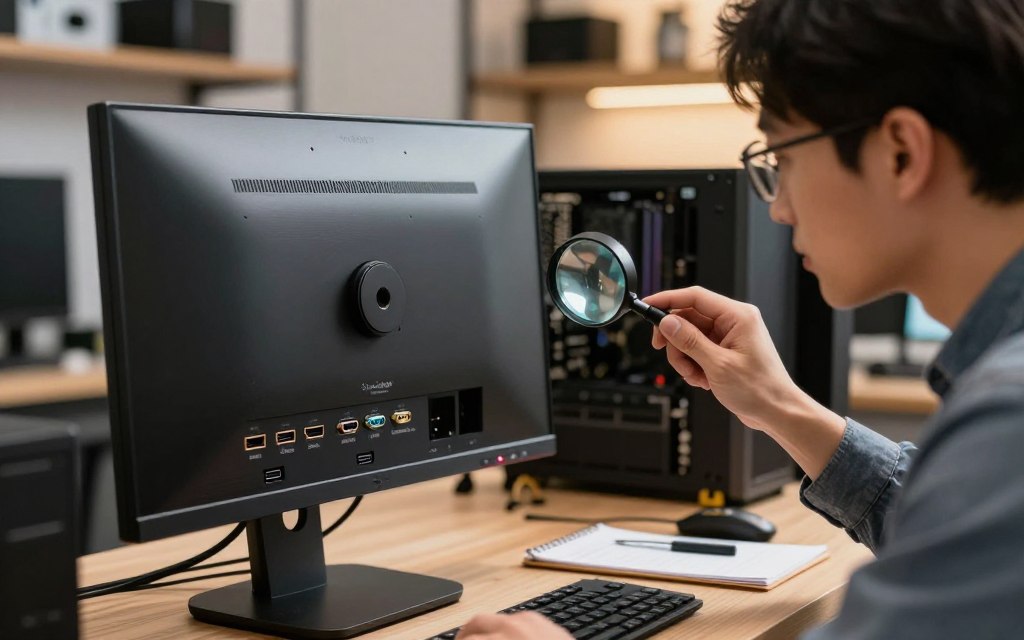
The simplest way to check monitor model is by looking at the monitor itself. Most makers put a sticker on the back or bottom. This sticker has the model number, serial number, and power needs.
To read the label clearly, you might need to turn the screen or use a flashlight. This method is the most reliable for finding out your monitor’s brand and version without using software. Once you find the label, jot down the details for later use.
Using Windows Display Settings
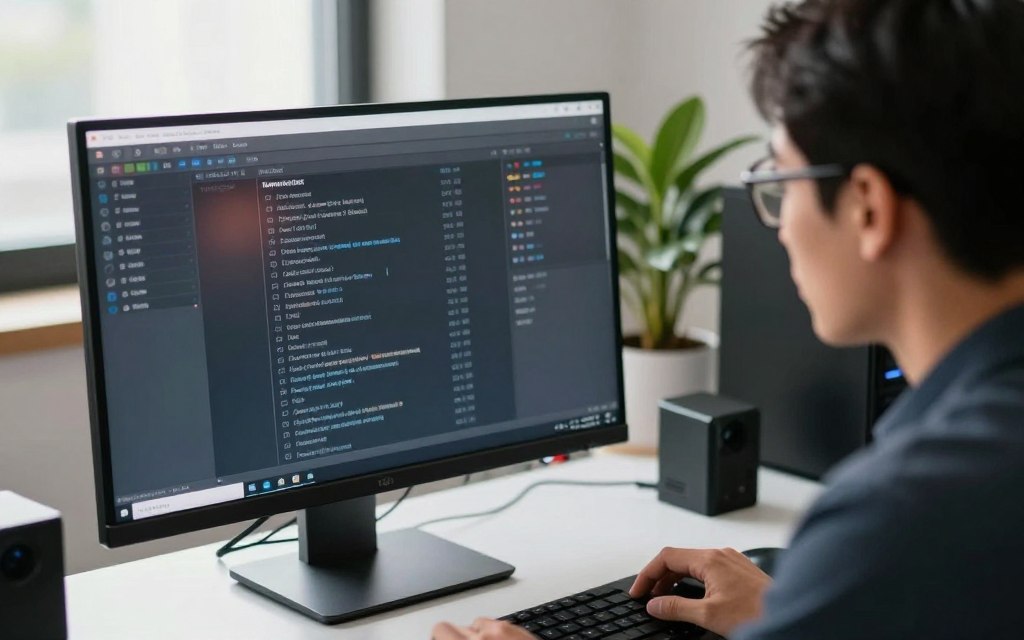
For a no-mess approach, you can view monitor details through Windows. Right-click on your desktop and choose “Display settings.” Then, scroll down to “Advanced display” to see your setup.
This menu shows display identification information from the monitor’s registry. It’s a handy way to identify monitor type without getting up. You’ll often see the maker’s name and model in the properties window.
Accessing monitor information via macOS
Apple users can find this info easily too. Click the Apple menu and pick “About This Mac.” Then, go to the “Displays” tab for your screen’s specs.
For more detailed info, open “System Information” and pick “Graphics/Displays.” This area gives you all the display identification information you need. It’s a quick way to check monitor model and identify monitor type without leaving your desk.
Advanced techniques to identify monitor specifications
When basic settings aren’t enough, you can use special tools to see monitor details clearly. These methods give you a closer look at your hardware. They help you find the exact model of your monitor, even if your operating system doesn’t show it. Whether you’re a designer or a gamer, these steps help you know your display’s technical details.
Utilizing third-party system information tools
Tools like HWiNFO or AIDA64 are great for detailed monitor specs. They scan your hardware and show info like color depth, refresh rates, and maker codes. With these tools, you can easily find out your monitor’s type and check if it performs as promised.
Checking the original packaging or purchase receipt
Looking at the original packaging or receipt is often the best way to find out your monitor’s brand and model. The box usually has a detailed spec sheet with the model number and serial code. If you still have your receipt, it might list the full product name, making it easier to verify your device.
Searching for the serial number on the manufacturer website
If you know your serial number, you can look it up on the manufacturer’s support site. Most big brands have a section for serial number lookup. Here, you can find manuals, drivers, and technical data for your specific monitor.
Conclusion
Knowing your hardware is key to a top-notch workstation. Now, you can quickly find monitor specs.
Having the right display info is crucial for updates and color settings. It makes tech support easier.
Brands like Dell, LG, and ASUS often hide important details. Always check the back for the serial number before calling customer service.
Regularly checking your monitor’s info keeps your system running well. This habit saves your investment and extends your equipment’s life.
Share your experiences with these methods below. Your feedback helps others with their hardware setups.